React experiments installation

  1. Install PostHog React SDK

    Required

    For Next.js, we recommend following the Next.js integration guide instead.

    1. Install posthog-js and @posthog/react using your package manager:

    npm install --save posthog-js @posthog/react

    1. Add your environment variables to your .env.local file and to your hosting provider (e.g. Vercel, Netlify, AWS). You can find your project API key and host in your project settings. Including VITE_PUBLIC_ in their names ensures they are accessible in the frontend.
    .env.local
    VITE_PUBLIC_POSTHOG_KEY=<ph_project_api_key>
    VITE_PUBLIC_POSTHOG_HOST=https://us.i.posthog.com
    1. Integrate PostHog at the root of your app (such as main.jsx if you are using Vite).
    React
    // src/main.jsx
    import { StrictMode } from 'react'
    import { createRoot } from 'react-dom/client'
    import './index.css'
    import App from './App.jsx'
    import posthog from 'posthog-js';
    import { PostHogProvider } from '@posthog/react'
    posthog.init(import.meta.env.VITE_PUBLIC_POSTHOG_KEY, {
    api_host: import.meta.env.VITE_PUBLIC_POSTHOG_HOST,
    defaults: '2025-11-30',
    });
    createRoot(document.getElementById('root')).render(
    <StrictMode>
    <PostHogProvider client={posthog}>
    <App />
    </PostHogProvider>
    </StrictMode>,
    )
    Don't directly import PostHog

    Do not directly import posthog apart from installation as shown above. This will likely cause errors as the library might not be initialized yet. Initialization is handled automatically when you use the PostHogProvider and usePostHog hook.

    Using React Router v7?

    You need to set posthog-js and @posthog/react as external packages in your vite.config.ts file to avoid SSR errors.

    vite.config.ts
    // ... imports
    export default defineConfig({
    plugins: [tailwindcss(), reactRouter(), tsconfigPaths()],
    ssr: {
    noExternal: ['posthog-js', '@posthog/react']
    }
    });

    See our Remix docs for more details.

  2. Capture conversion event

    Required

    Once PostHog is initialized, you should be able to capture events.

    For this tutorial, let's capture a conversion event on a <button id="cta"> click.

    JSX
    import { usePostHog } from '@posthog/react'
    export function CTAButton() {
    const posthog = usePostHog()
    return (
    <button id="cta" onClick={() => posthog?.capture('cta clicked')}>
    Click me
    </button>
    )
    }
  3. Validate PostHog events

    Checkpoint
    Confirm events are being sent to PostHog

    Before proceeding, let's make sure events are being captured and sent to PostHog. You should see cta clicked events appear in the Activity feed.

    Check for events in PostHog

  4. Create an experiment

    Required

    Go to the Experiments tab in the PostHog app and click on the New experiment button in the top right.
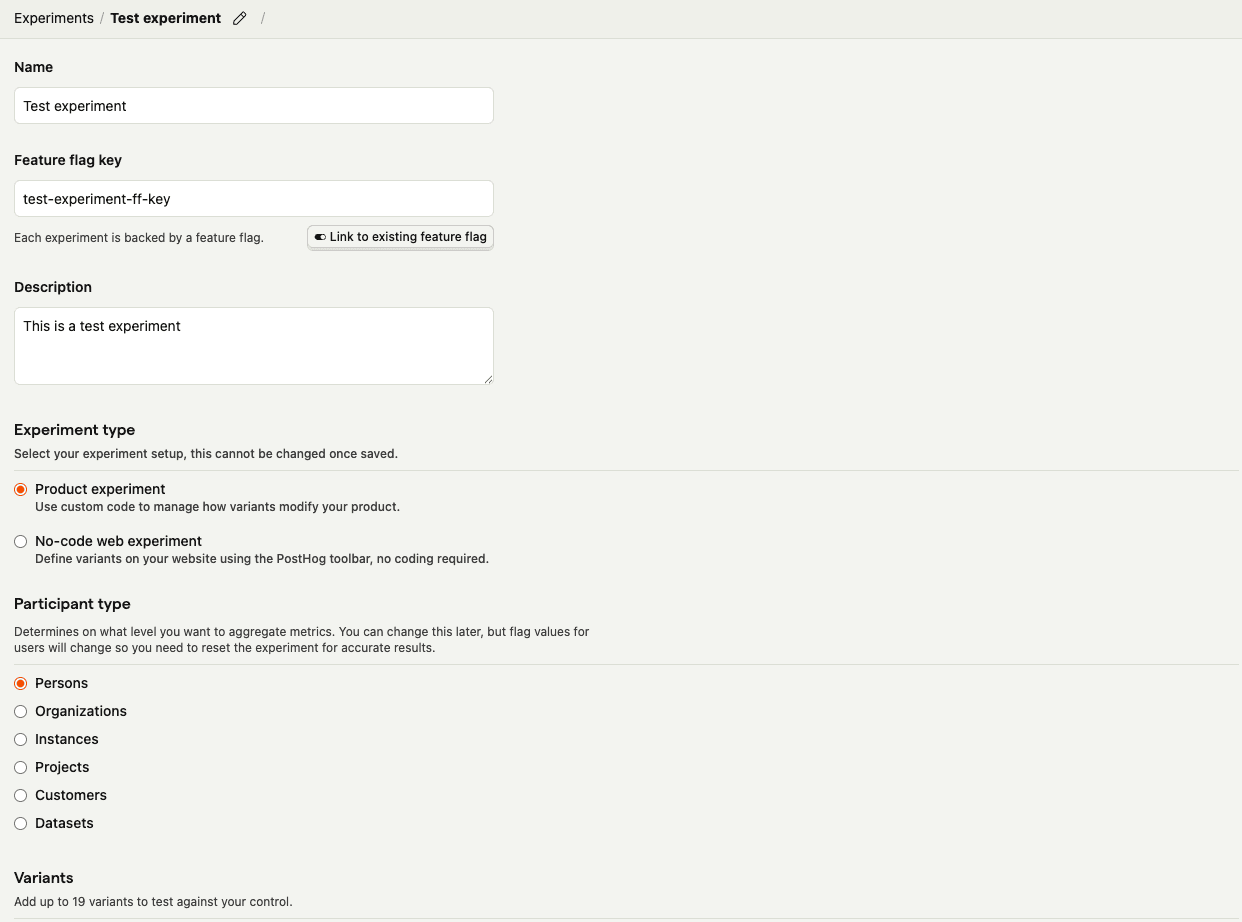
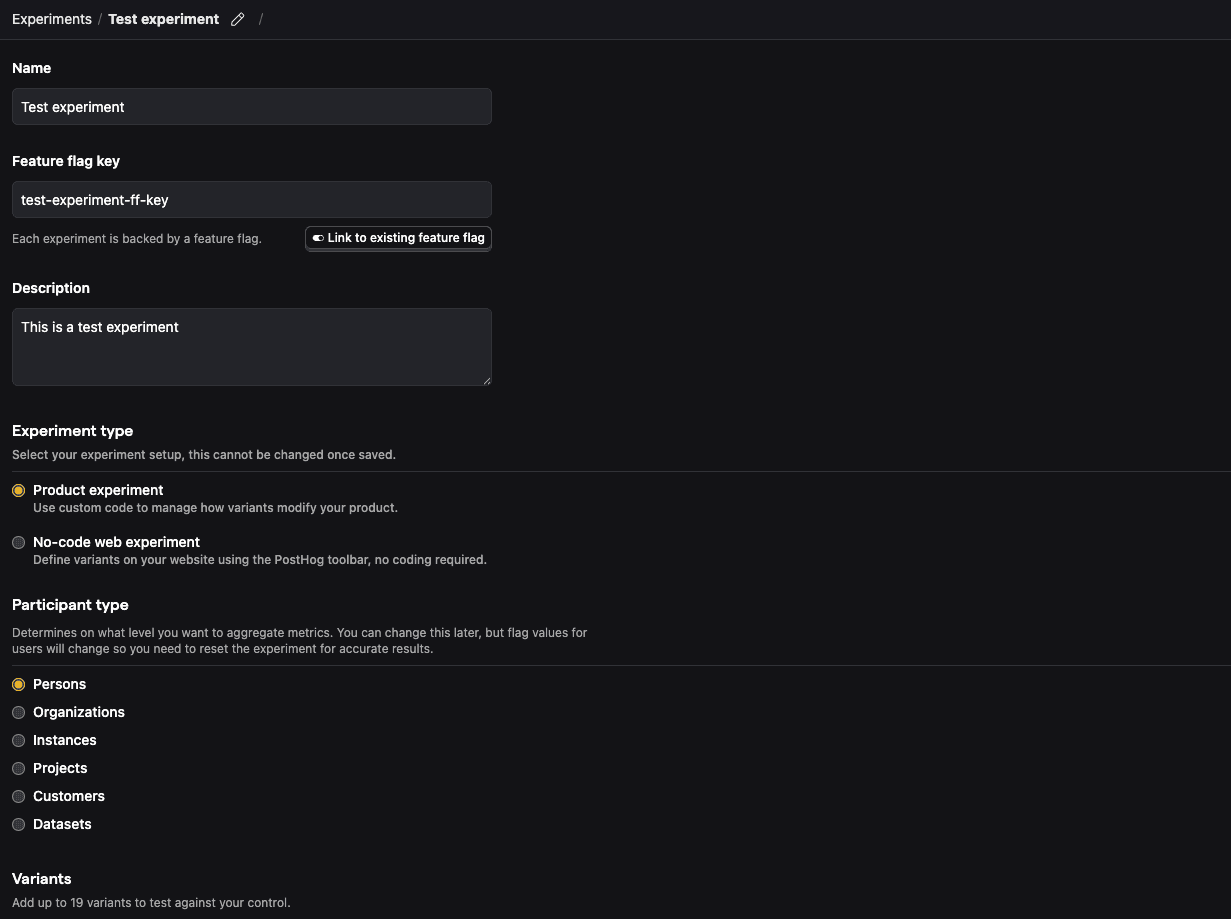
    Create experiment

    For this tutorial, let's create a new experiment using simplified test values:

    • Name: "Test experiment"
    • Description: "This is a test experiment"
    • Feature flag key: "test-experiment-ff-key"
    • Experiment type: "Feature flag"
    • Variants: "control" and "test"
    • Participant type: "Users"

    Then click Save as draft.

  5. Add primary metric and launch

    Required

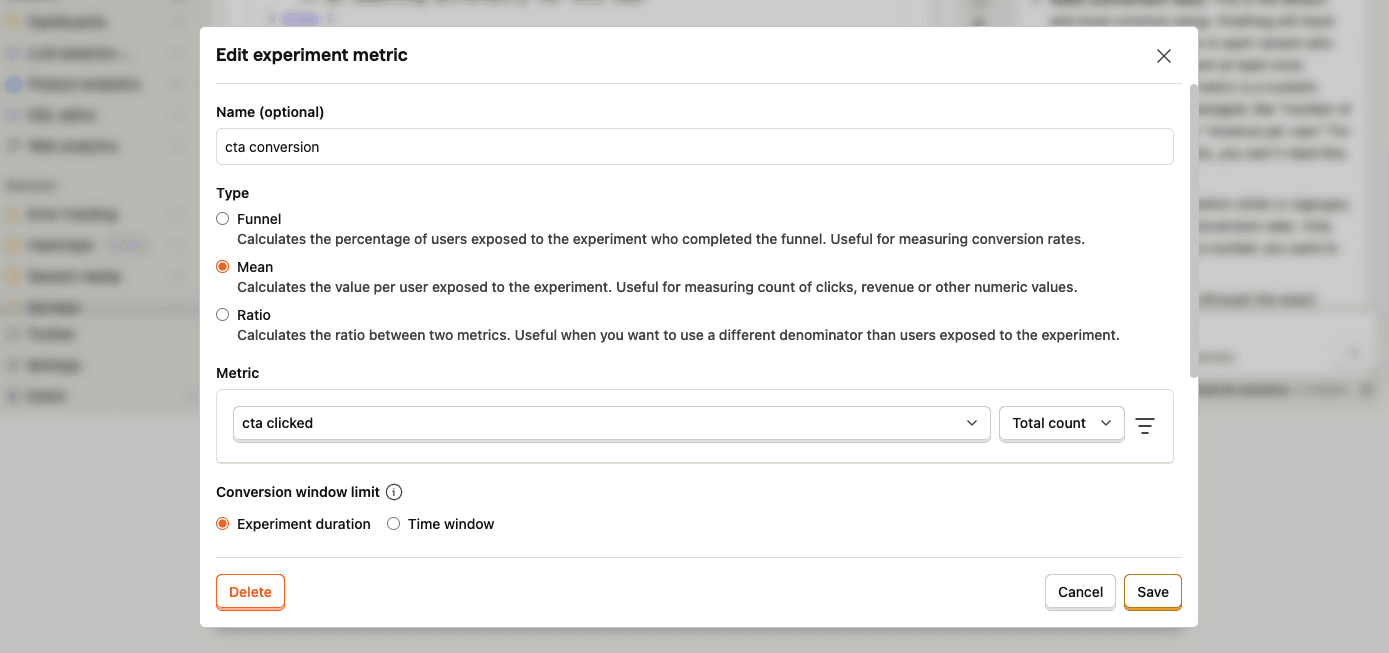
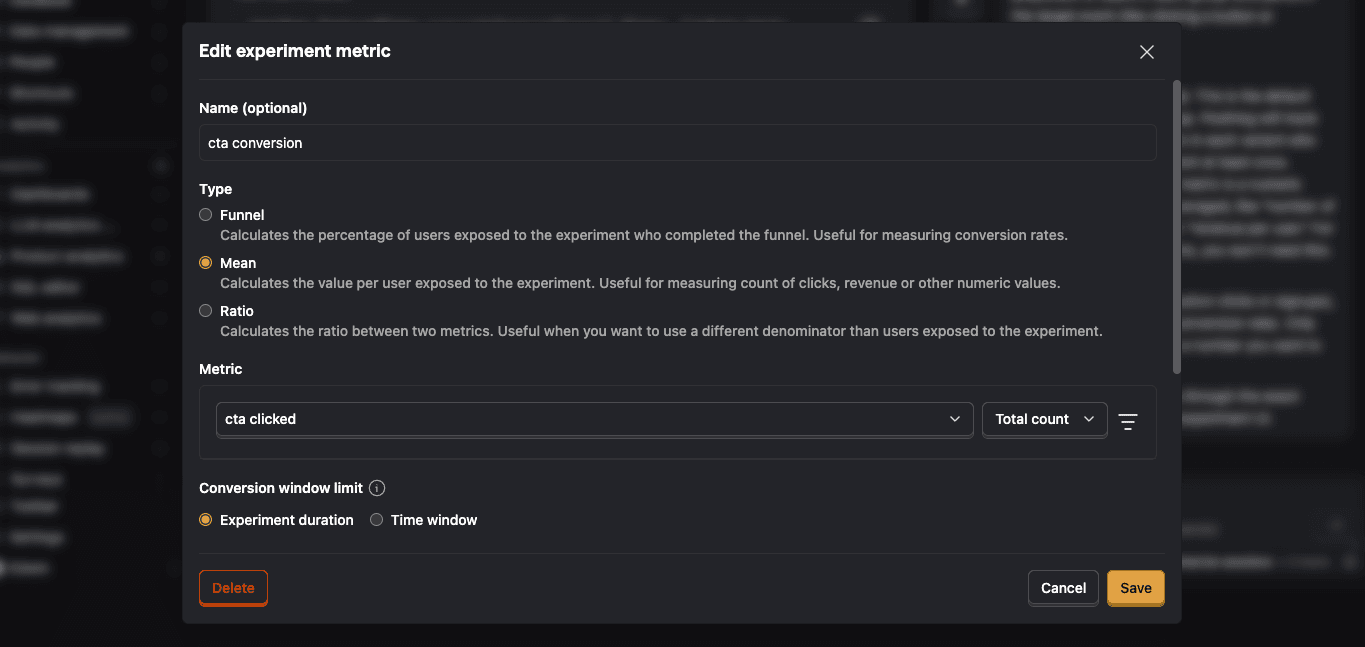
    Scroll down to the Primary metrics section and click + Add primary metric.

    Choose Single-use and select Type > Mean.

    Then search for the event cta clicked under Metric and click Save.

    Add primary metric

    By default, experiments are exposed to 100% of users. You can customize release conditions to expose the experiment to a subset of users.

    For this tutorial, we'll ship the experiment to all users and click Launch in the top right.

  6. Call feature flag

    Required

    Use the React hooks to evaluate the experiment flag and render the <button id="cta"> text based on the assigned variant.

    JSX
    // Method one: using the useFeatureFlagVariantKey hook
    import { useFeatureFlagVariantKey } from '@posthog/react'
    function CTAButton() {
    const variant = useFeatureFlagVariantKey('test-experiment-ff-key') // 'control' | 'test' | null
    return (
    <button id="cta">
    {variant === 'control' ? 'Control CTA' : 'Test CTA'}
    </button>
    )
    }
    // Method two: using the feature flags component
    import { PostHogFeature } from '@posthog/react'
    function CTAButton() {
    return (
    <>
    <PostHogFeature flag="test-experiment-ff-key" match="control">
    <button id="cta">Control CTA</button>
    </PostHogFeature>
    <PostHogFeature flag="test-experiment-ff-key" match="test">
    <button id="cta">Test CTA</button>
    </PostHogFeature>
    </>
    )
    }
    // You can also test your code by overriding the feature flag:
    // e.g., posthog.featureFlags.overrideFeatureFlags({ flags: {'text-experiment-ff-key': 'test'}})

    Now when a user triggers a cta clicked event, PostHog automatically assigns the user to a variant and records an experiment exposure.

    By default, users are split equally between variants. If you want to assign specific users to a specific variant, see more about distribution and release conditions.

  7. Validate feature flag calls

    Checkpoint

    Make sure exposures and feature flag calls are being sent to PostHog. You should see $feature_flag_called events appear in the Activity feed.

    Check for events in PostHog

  8. Evaluate experiment results

    Recommended

    As you capture more cta clicked events, more exposures will populate the primary metrics in your experiment.
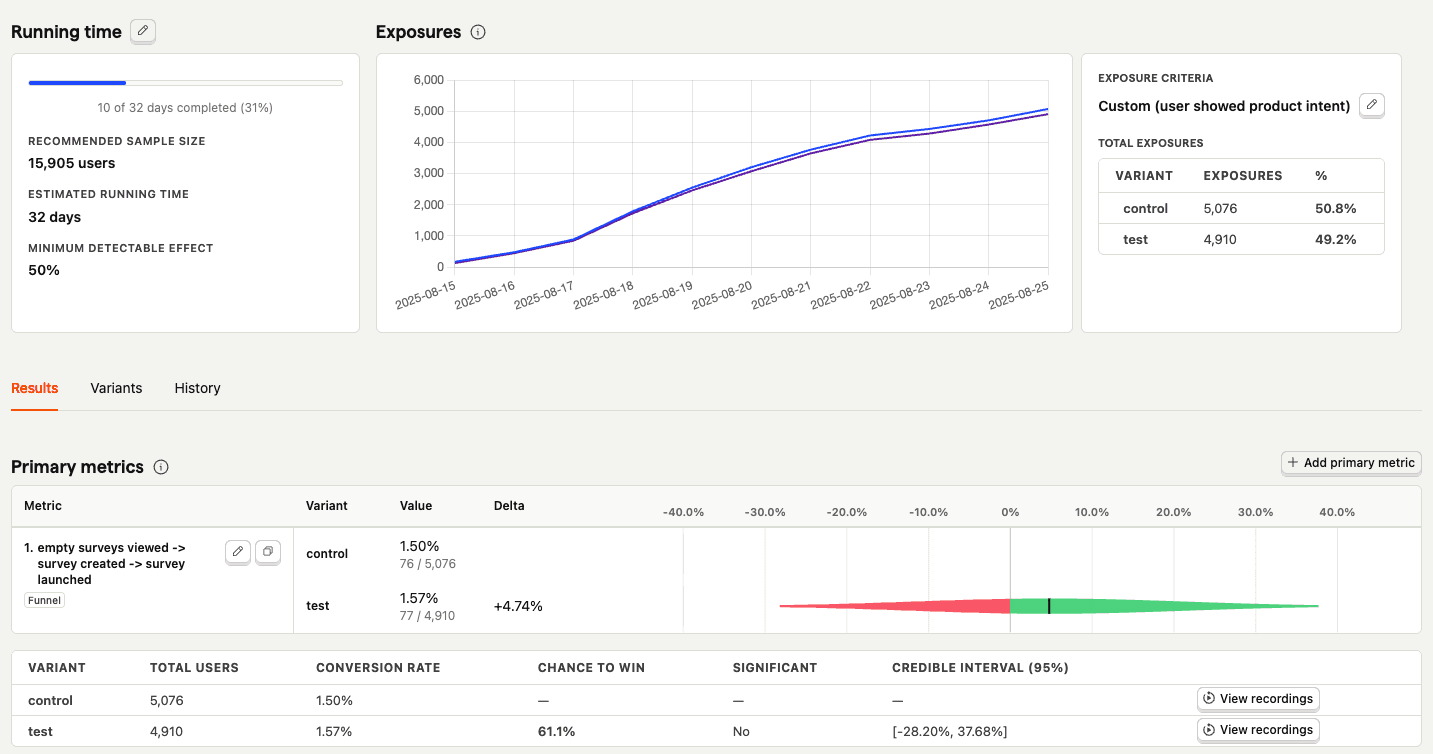
    Evaluate experiment metrics

    With enough data, you can analyze the experiment and its variants by:

    • Conversion rates
    • Statistical significance
    • Credible intervals
    • Chance to win %
    • Minimum detectable effect
    • And more

Community questions

Was this page useful?

Questions about this page? or post a community question.