








Exposures
Contents
Exposures are the foundation of experiment analysis in PostHog. A user must be exposed to your experiment before they can be included in any metric calculations. Understanding how exposures work is crucial for running successful experiments.
What is an exposure?
An exposure occurs when a user encounters the part of your product where the experiment is running. This is the moment they become a participant in your experiment and start contributing to your metrics.
For most users: If you're using PostHog feature flags with our SDKs, exposures are tracked automatically. When you call getFeatureFlag(), PostHog sends a $feature_flag_called event with all the necessary properties. You don't need to do anything extra.
Technical details: PostHog considers a user exposed when it receives a $feature_flag_called event containing:
- The property
$feature_flagmatching your experiment's flag key - The property
$feature_flag_responsewith a variant value (e.g., "control" or "test")
Only exposed users are included in your experiment analysis. Any events that occur before exposure are ignored, ensuring clean and accurate results.
Metric events are only counted if they occur after a user's first exposure. This ensures that:
- You're measuring the actual impact of your experiment changes
- Pre-exposure behavior doesn't contaminate your results
- Each user's journey is measured from the same starting point
For example, if a user makes a purchase before being exposed to your pricing experiment, that purchase won't count toward the experiment metrics.
Exposure visualization
The experiment view displays real-time exposure data to help you monitor participation:
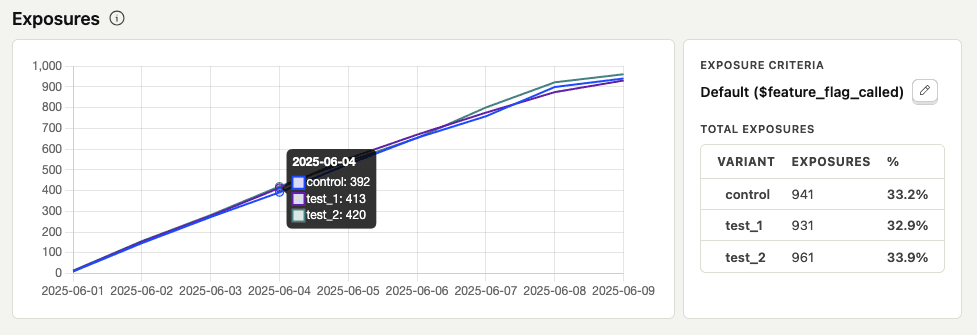
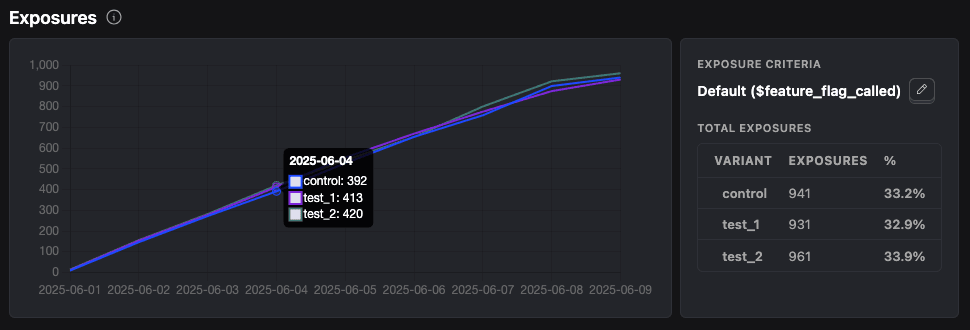
The exposures chart shows:
| Metric | Description |
|---|---|
| Daily cumulative count | Unique users exposed to each variant over time |
| Total exposures | The absolute number of users in each variant |
| Distribution percentage | How users are split across variants |
| Exposure criteria | The event being used to determine exposure |
Custom exposure events
While the default $feature_flag_called event works for most experiments, you might need a custom exposure event when:
- You are using a different feature flag SDK that doesn't send
$feature_flag_calledevents - You want more precise control over when users are considered exposed
- You're running server-side experiments with custom instrumentation
Setting up custom exposure
To configure a custom exposure event:
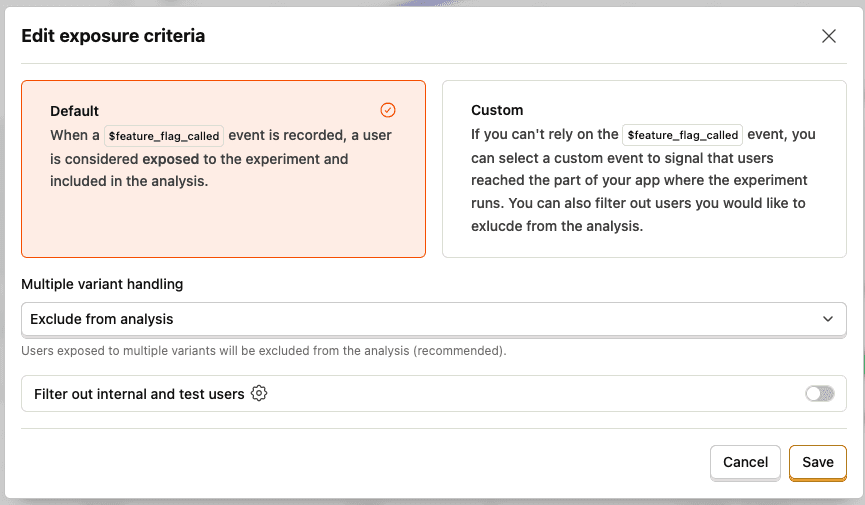
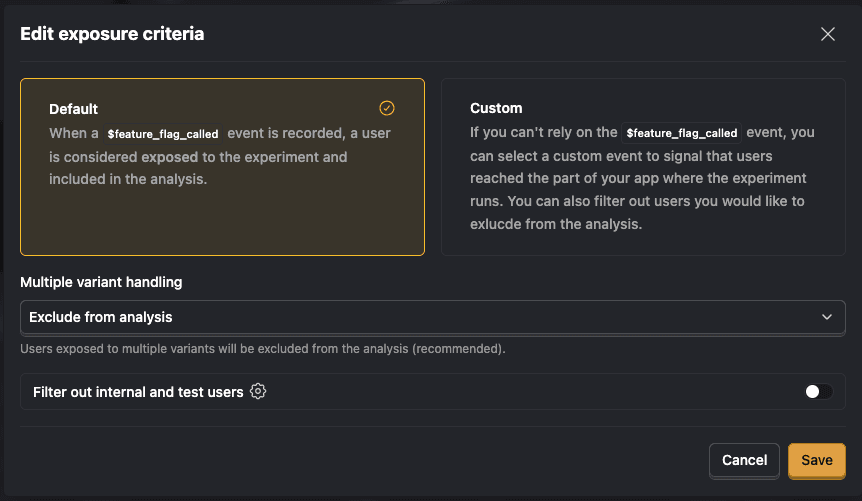
- Click Edit exposure criteria in your experiment
- Select Custom exposure type
- Choose your exposure event (e.g., "viewed_checkout_page", "api_endpoint_called")
- Add any property filters to refine the exposure criteria
If you're using PostHog's SDKs and feature flags, variant tracking is handled automatically. However, if you're using custom exposure events or your own feature flag system, you need to ensure the correct properties are set:
- Standard PostHog flags: The SDK automatically populates
$feature_flag_responsein$feature_flag_calledevents - Custom exposure events: You must manually include
$feature/<flag-key>property with the variant value
For example, if your flag key is "new-checkout" and you're using a custom "viewed_checkout" event, that event must include the property $feature/new-checkout with values like "control" or "test".
Handling multiple exposures
Users might be exposed to different variants if:
- They use multiple devices
- They clear cookies/storage
- There's an implementation error
- They're part of a gradual rollout
PostHog provides two strategies for handling these cases:
Exclude from analysis (recommended)
Users exposed to multiple variants are completely removed from the experiment analysis. This ensures the cleanest results by eliminating any cross-contamination between variants.
Use first seen variant
Users are analyzed based on the first variant they were exposed to, regardless of subsequent exposures. This maximizes sample size but may introduce some noise into your results.
Sample ratio mismatch detection
Sample ratio mismatch (SRM) is an automatic check that compares your actual user distribution across variants against your configured rollout percentages. PostHog uses a chi-squared statistical test to detect when the observed distribution is significantly different from what's expected.
Why SRM matters
When your experiment has SRM, it means something may be systematically biasing which users end up in each variant. This can invalidate your experiment results because:
- The variants may no longer be comparable populations
- Any differences in metrics could be due to the bias rather than your changes
- Statistical conclusions become unreliable
How it's displayed
PostHog automatically calculates SRM once your experiment has at least 100 total exposures. You'll see the result below the exposures table:
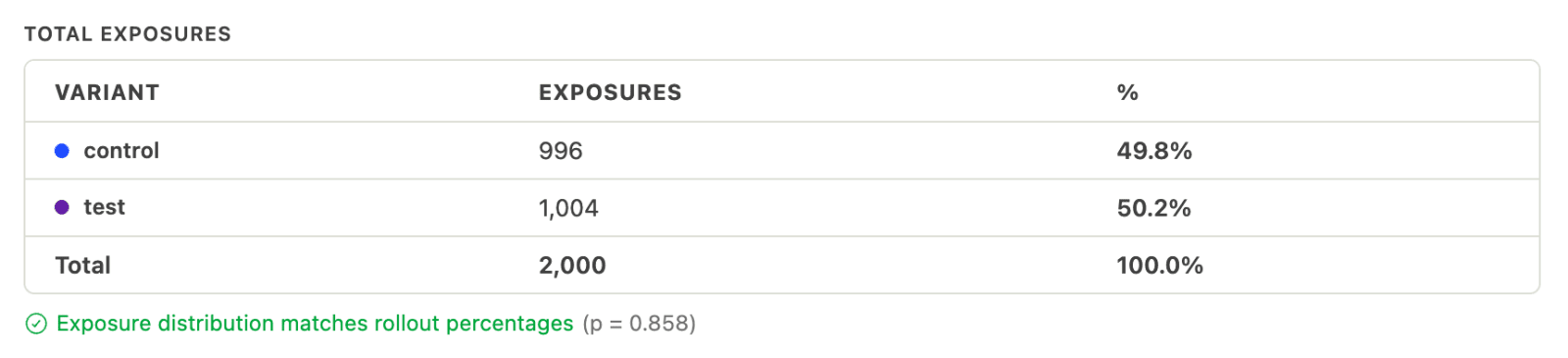
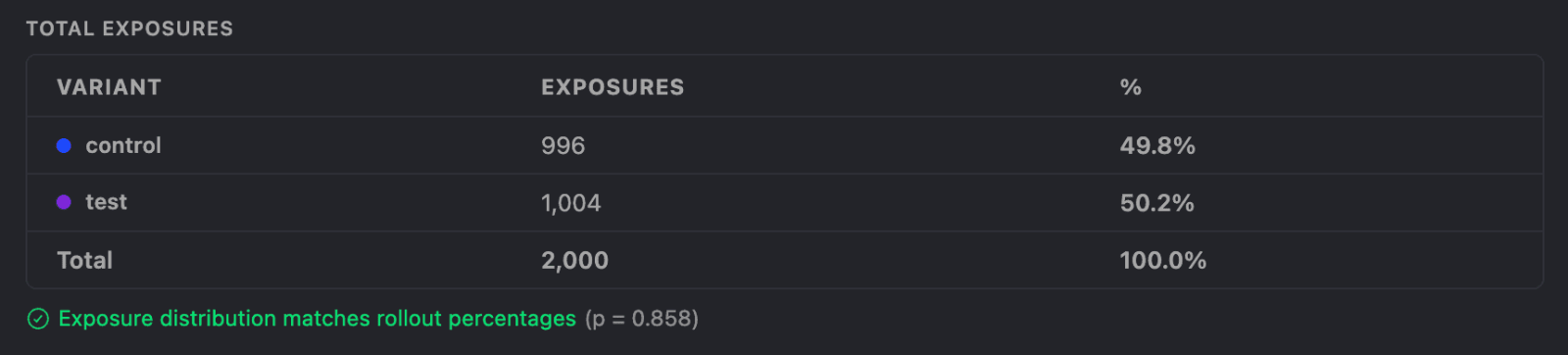
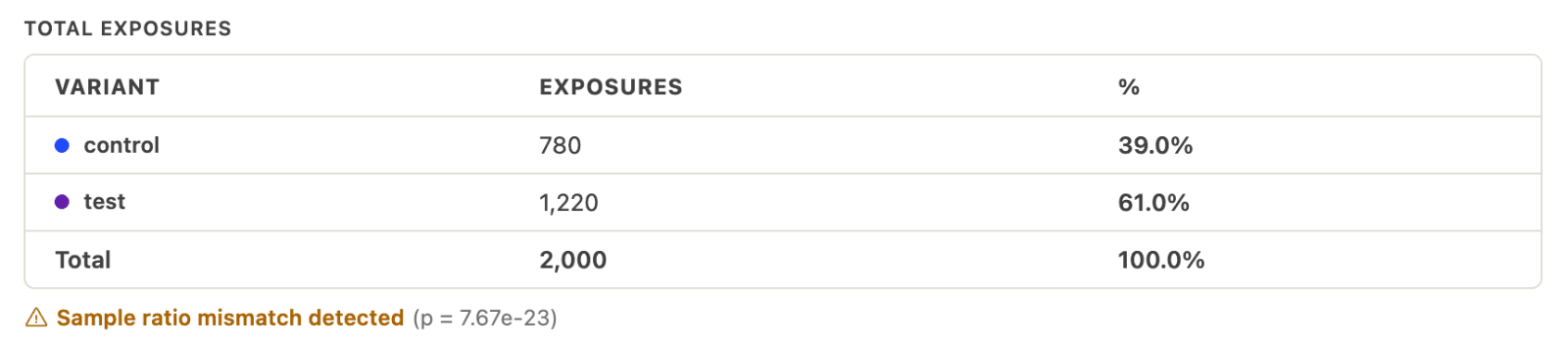
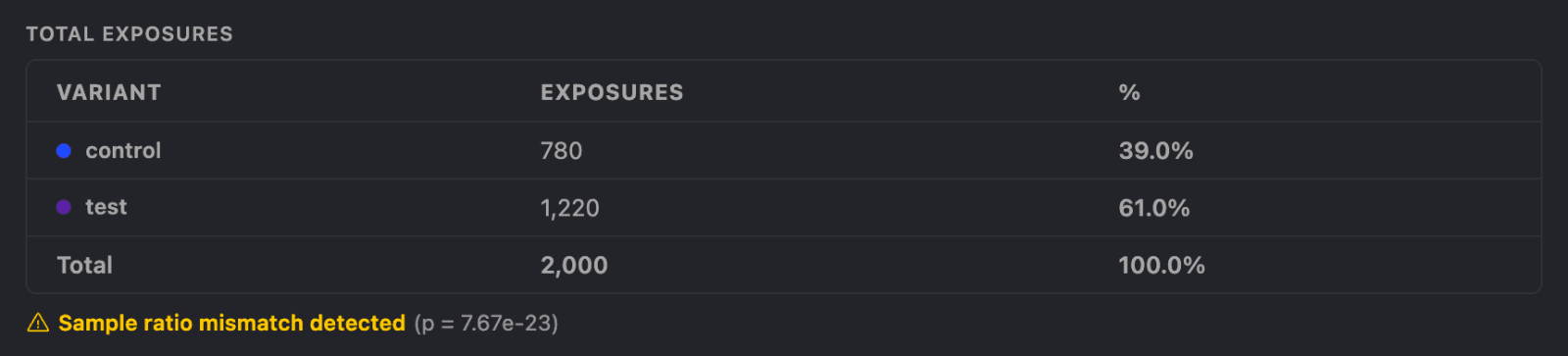
- Green checkmark: Distribution matches your rollout percentages. The observed difference is within normal random variation.
- Yellow warning: Sample ratio mismatch detected. The distribution is significantly different from expected.
PostHog uses a significance threshold of p < 0.001 to flag mismatches. The p-value is displayed alongside the status—a lower p-value indicates stronger evidence of a mismatch.
What to do if SRM is detected
If you see a sample ratio mismatch warning, investigate before drawing conclusions from your experiment:
Check your feature flag implementation: Verify the flag is being evaluated correctly across all code paths. Ensure you're calling
identify()before evaluating flags (for frontend SDKs).Review release conditions: If you're using property-based release conditions, ensure those properties are available at evaluation time. Missing properties can cause users to fall out of the experiment unevenly. Consider using simple percentage-based rollout (e.g., 50/50) rather than complex conditions.
Check for ad-blockers or network issues: These can prevent feature flag calls from reaching PostHog for certain users, skewing your distribution. Consider setting up a reverse proxy to route requests through your own domain, which bypasses ad blockers and typically increases event capture by 10-30%.
Look for performance differences between variants: If one variant causes pages to load slower or crash more often, users may drop off before the exposure event fires.
Look for bot traffic: Bots may trigger exposures unevenly across variants.
Check for race conditions: If your exposure event can fire before the feature flag is fully evaluated, some users may be incorrectly assigned.
Verify test account filtering: Ensure internal users aren't being included in ways that skew the distribution.
Test account filtering
You can exclude internal team members and test accounts from your experiment by enabling test account filtering in the exposure criteria. This uses your project's test account filters to ensure only real users contribute to your metrics.
Best practices
Verify exposure tracking early: Before launching your experiment, confirm that exposure events are being sent correctly for all variants.
Choose the right exposure point: Place your exposure event at the moment users actually encounter the experimental change, not just when they load a page or app.
Monitor exposure balance: Check that users are being distributed across variants according to your configured percentages. Significant imbalances may indicate implementation issues.
Consider exposure timing: For experiments with delayed effects, ensure your exposure event gives enough time for meaningful metric changes to occur.
Document custom exposures: If using custom exposure events, document what triggers them and any required properties for future reference.
Common issues
No exposures appearing
- Verify your feature flag is active and returning variants
- Check that
$feature_flag_calledevents are being sent (or your custom exposure event) - Ensure the event includes the correct
$feature/<flag-key>property
Uneven variant distribution
- Review your traffic allocation settings
- Check for conditional targeting rules that might affect distribution
- Verify there are no client-side issues preventing certain variants from loading
Metrics not updating
- Remember that only post-exposure events count toward metrics
- Confirm your metric events include the required variant property
- Check that events are ordered correctly (exposure must come first)